Documents
Account documents aren’t flashy, but they are important to your end users. So when they need access to eStatements or tax information, we make it quick and easy for them to do so. While launching the Documents experience will be the same for all end users, their interaction within provider platforms will depend upon your institution’s provider and configuration.
How does it work?
Within Banno Apps, launch points that end users use to access eDocuments will feel the same with every provider. Most commonly, end users will access documents via the Documents quick action on the dashboard. If documents are enabled for your institution, this quick link will appear with no additional configuration. The following launch points are also available:
End users can access the Documents card within an individual account:
- Select an account
- Documents
End users can access eDocuments through their account Settings:
- Select an account
- Settings
- Documents
They can also access eDocuments starting from their user profile menu:
- Settings
- Select the institution under Accounts
- Select account
- Documents
As soon as an end user launches their Documents experience, which eDocuments they can view and download will vary on the features offered by your statement solutions provider.
Electronic Statements - Interactive (ESI)
When end users enroll to receive paperless statements and other documents, both you and they are on the way to better things—and fewer headaches. With no more shuffling through or losing papers, end users gain immediate access to secured, digital documents stored within their account. You also save on printing and postage costs, as well as offer end users a “green” alternative to traditional documents. Let’s start enrolling.
What’s so great about the native ESI integration?
We make enrolling in electric documents (eDocuments) pretty effortless for end users. If your institution has ESI, one of our primary statement solutions used by many other institutions, we offer configurations for both a native integration and SSO experience. Depending on your institution, you might use one configuration or a combination of both. What’s the difference? The native integration provides a superior and faster experience for end users to enroll and view account documents. We want the best for you and your end users, and a native solution built directly within Banno Apps provides just that.
Our native integration aims to move away from using SSO altogether and into a fully integrated end user experience. You can stay updated by seeing our roadmap on For Clients.
How it works
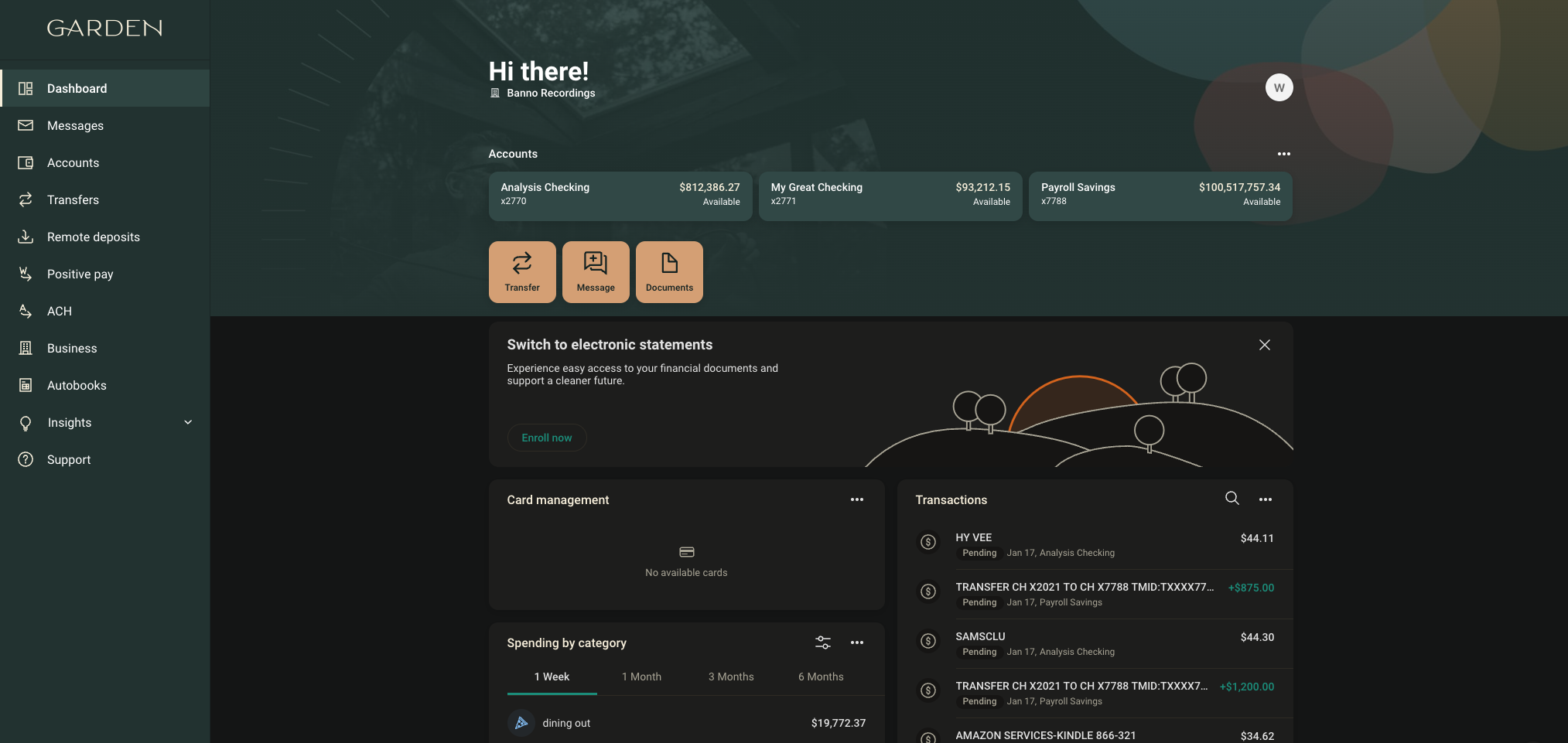
| ID | Description |
|---|---|
| 1 | Access to the accounts screen, through which you can access documents for that account. |
| 2 | Direct link to Documents. |
| 3 | Prompt for eStatement enrollment for unenrolled users. |
Within Banno Apps, end users access the same launch points we configure for every institution’s statement solution provider.
Documents service agreement
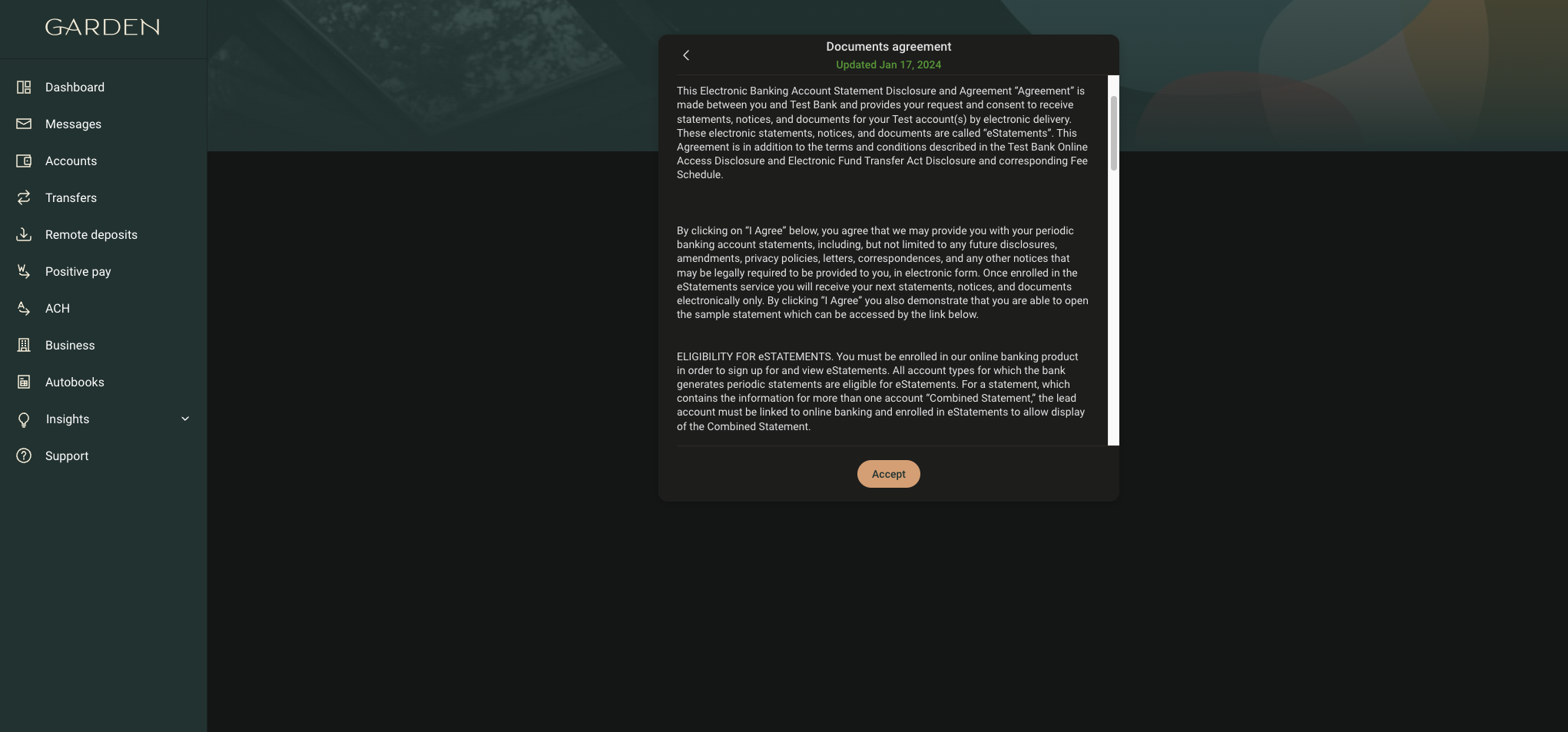
When an end user selects a Documents launch point and they’ve yet to enroll, or they already enrolled but the Documents service agreement was updated, they’ll first need to Accept your institution’s terms and conditions. After accepting the disclosure agreement, the end user then views the enrollment status of their account(s).
Documents enrollment status
When an end user has never opted-in or they’ve unenrolled all accounts, a complete list of their accounts displays in a Documents enrollment status window. The end user then choose which accounts to opt-in and receive eDocuments. If they’ve already enrolled an account and they access Documents, only the individual account displays.
- Documents
- This label displays to the end user at the top of the enrollment screen and also within individual accounts as a Documents card. This label isn’t configurable.
- Electronic documents
- This title displays to the end user and notifies them that they’re opting-in account(s) to receive digital statements instead of mailed paper documents. This label isn’t configurable.
- Description field
- This text explains what an end user is opting-in to do and is configurable during implementation. If you’re unsure what to say, here are some examples:
- Go green and receive your documents faster with eStatements.
- Stay organized. Go paperless and securely view, download, or print your eDocuments.
- Access your eDocuments anytime, anywhere. Securely view, download, or print your eDocuments in one safe spot.
- Notify at
- Notify at displays the end user’s email as it’s listed on the core. If your institution uses the native integration, a support user needs to update the recipient’s email on the core. If your institution uses SSO, the end user updates their address directly within that platform.
- Accounts to enroll
- A full list of the end user’s accounts displays, including each account name and the last four digits of the account number. For banking institutions, the end user can select multiple accounts at once.
- Enroll
- The Enroll button saves the accounts that the end user wants to receive digital statements for.
Successful enrollment
If the enrollment or updated enrollment is successful, a success screen displays to the end user, stating Enrolled. You can update these details in account settings. They will need to select the Ok button to acknowledge the save.
Documents
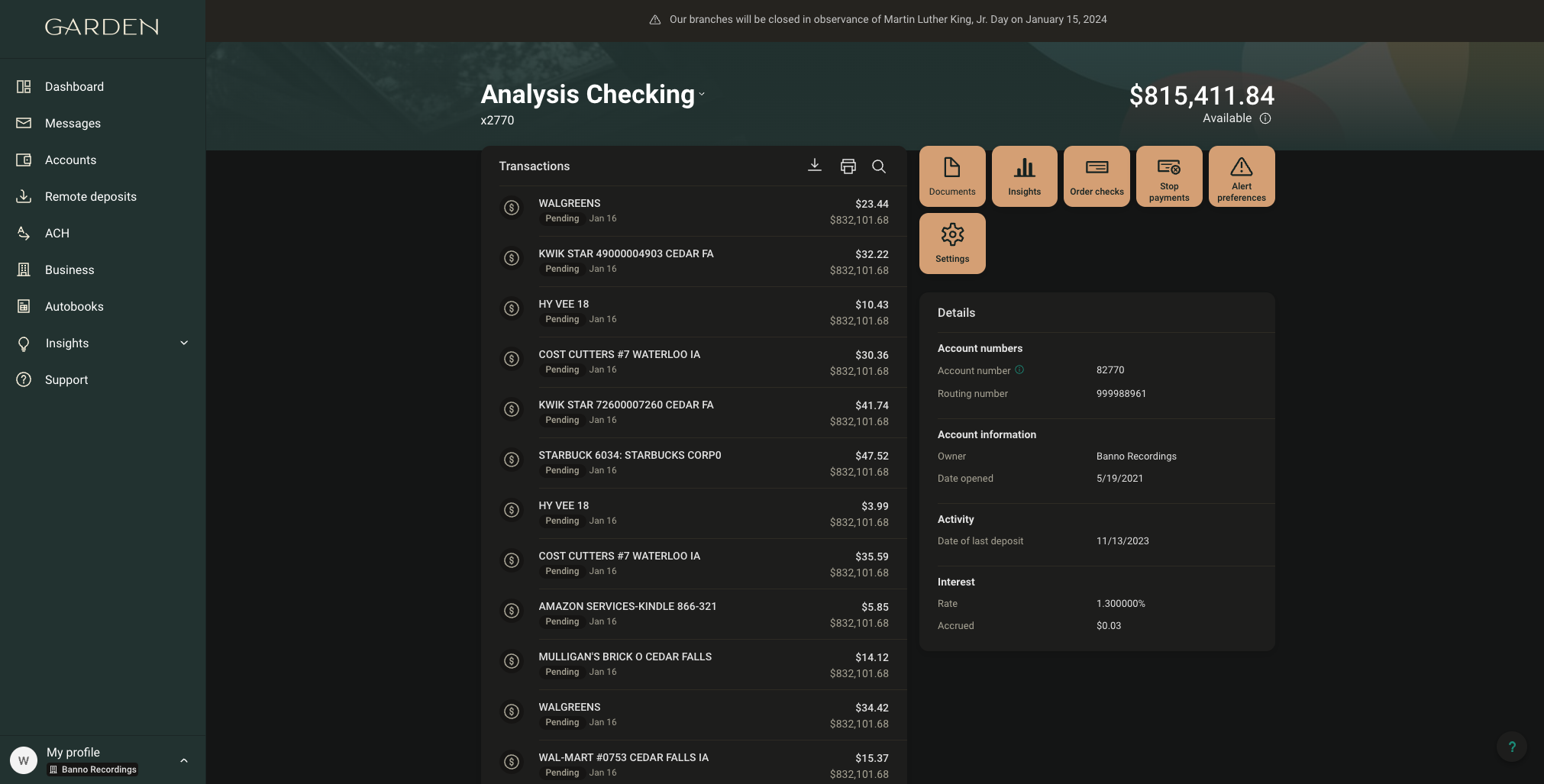
| ID | Description |
|---|---|
| 1 | Direct link to Documents for the selected account. |
| 2 | Link to Settings, including Advanced Document Settings, taking the user to the ESI single sign-on |
Following a successful save, the Documents screen displays a variety of eDocuments relevant to all accounts for the end user which can be filtered to include only certain accounts. When entering this view from a specific account, a filter for the selected account will be active by default.
Depending on the type of eDocuments your institution provides to end users, you can display up to three different types of documents. The types available today include Statements, Notices, Taxes. For each document type, a date dropdown displays.
When current Banno institutions begin using Documents, end users start building their online statement history after their enrollment—previous paper statements received by end users won’t display. End users can download individual documents or view them in the default file viewer on mobile. If there are no available eDocuments available for the selected account, type of document, or year, the end user sees a message stating No documents available.
Exit
When the end user is done reviewing or downloading eDocuments, they can return to the account details by selecting the back arrow icon on the Documents screen.
Retention
Rentention varies from customer to customer and can be set to a maximum of 7 years within Banno configuration. The document display will adjust to the maximum document retention being returned via ESI API calls. The document retention will build after enrollment unless the institution has ESI 4Sight historical integration at the ESI level, allowing historical content to be generated upon enrollment.
View or change the enrollment status & settings for individual accounts
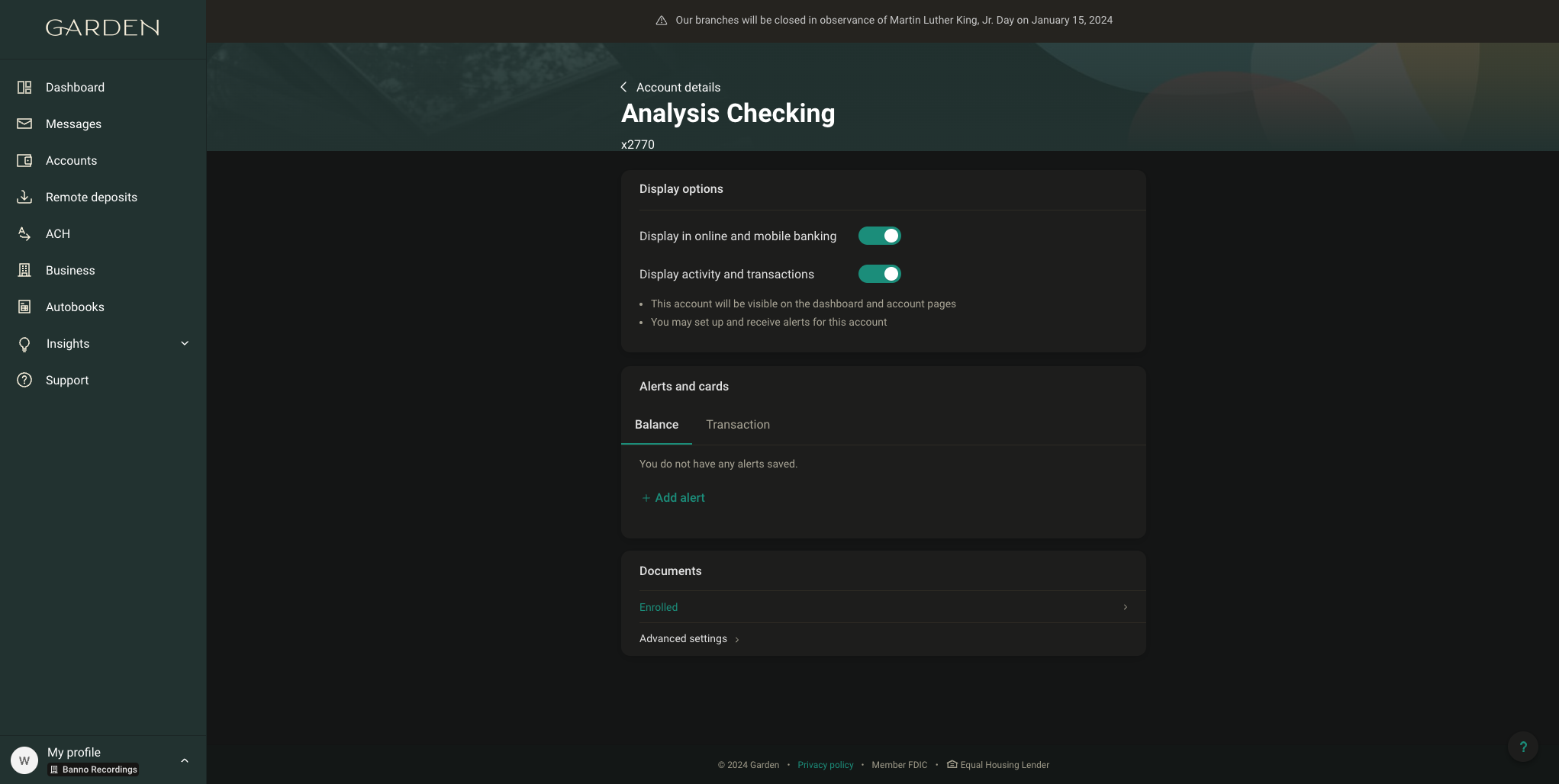
| ID | Description |
|---|---|
| 1 | Link to enroll, or notification that this account is enrolled. |
| 2 | Link to Documents advanced settings. |
Within each account’s Settings, the Documents section displays that account’s enrollment status and possibly additional settings.
- Enroll
- If an end user has yet to opt-in an account, this linked status displays to the end user. By selecting the Enroll status, the end user can begin the process of opting-in the account to receive digital statements and other eDocuments.
- Enrolled
- If an end user has already opted-in an account, this linked status displays to the end user. By selecting the Enrolled status, the end user can begin the process of receiving mailed paper documents.
- Advanced settings
- If the ESI SSO integration is also configured, the end user views and can select Advanced settings. Within Advanced settings, an end user can view eDocuments, change their email, and add additional recipients to receive email statement notifications. If you want to allow adding additional recipients, the SSO must be configured and accesible from Advance settings—the API integration doesn’t currently support adding additional recipients.
Banno Business users
Here are a few things to know regarding usage by Banno Business users:
- Only admin users are able to enroll. Non-admin users who attempt to enroll will see an ‘oops’ error (we have plans to improve this messaging).
- The documents accessible by a given user are filtered to only accounts the user has the “Documents” entitlement enabled for.
Credit union businesses
The “Documents” entitlement is automatically enabled at the Organization level, but must be enabled for each user who requires access. There is only a user-level entitlement (not account-level). To restrict document access for a given account, the entire account should be disabled for the user.
Note: On June 4, 2026, we completed a migration which granted access to all Credit Union Banno Business users who already had access to documents. Post-migration, any users requiring documents access will need to have the “Documents” entitlement granted to them.
Banno People
If your institution is configured for our native ESI integration (rather than the SSO), authorized employees can open a user’s profile in Banno People to view, filter, and download the same eDocuments that the end user can access within Banno Apps.
- Users
- Accounts
- Select an account
- View documents or Documents
FAQ
FAQ: Documents
- No, not all providers offer an enrollment process. Depending on your institution’s configuration, the end user’s experience will likely vary from provider to provider and institution to institution. If you have questions on how end users interact with your provider’s platform, we recommend referencing the provider’s documentation.
- If your financial institution is powered by our native ESI documents integration, then you can enable the eStatement enrollment prompt to promote adoption.
- If your statement solutions provider is ESI, the ESI section above has details on enrolling and viewing documents. If you have a different provider from ESI and you have questions on how end users interact with your provider’s platform, we recommend referencing the provider’s documentation.
- Depending on your statement solutions provider, we can possibly configure this as an option. Please contact us for more information!
FAQ: ESI
- Within the ESI SSO user experience, end users can view eDocuments, but also update their email address and add other email recipients to receive statement notifications. As we work to offer these features within the native ESI experience and move away from SSO, see our roadmap on For Clients for updated information.
- Support users can enroll on behalf of end users through ESI BackOffice. Banno People doesn’t offer this functionality.
- When the end user enrolls for the first time, all of their accounts display. If they need to enroll additional accounts after the initial enrollment, they’ll need to do so within the individual account details. The only way to list all of the accounts again is to first unenroll every account and then start the enrollment process from scratch again.
- Starting with date an end user successfully enrolls, they’ll be notified by email as eDocuments are made available online by their institution.
- If your institution supports FSCC, you’ll need to continue using the SSO so that end users can access FSCC statements. As we work to offer this feature within the native ESI experience and move away from SSO, see our roadmap on For Clients for updated information.
- eDocuments are available for as long as the account is displayed in Banno Apps.
- We display up to 20 accounts’ documents at a time. If an end user has more than 20 accounts, we display one account’s documents at a time and the end user can use the filtering option to view other accounts.
- Banno supports three document types—typically Statements, Taxes, and Notices. Statements are only the DD7600 documents. Tax documents display under Taxes, and all other documents display under Notices.
- Depending on the number of years configured, end users can access documents 365 days (accounting for leap years) back. For example, if it’s configured for two years, the end user has access to documents 730 days back. Note: This only accounts for documents available to Banno. The actual history is controlled by settings in ESI and the end user’s enrollment date.
- This largely depends on the scope of the release, but generally changes made to the enrollment flow and email notifications will be noticeable to Banno users. Modifications to how NetTeller handles enrollment during login and listing documents typically will not affect Banno.
- We only allow there to be one Documents quick action on the dashboard. When multiple providers are in play, we always prioritize the native (API integrated) documents solution because it is typically where the primary documents are stored. This creates a superior user experience.